---
title: Audiences
description: Audiences lets organizations build, manage, and message groups of contacts over time by creating an Audience, adding contacts with useful fields (e.g., name, state, address), and using dynamic Saved Searches and filters to segment contacts for targeted campaign uploads. Audiences also supports an opted-in program for messaging Opt-In Audiences via 10DLC or Toll-Free (and/or Short Codes) with opt-in keywords, advanced targeting, and warm-list performance benefits; to set up a 10DLC or Toll-Free number, submit a ticket to Client Support or book time with the Registration Ops Team.
---
[Skip to content](https://support.scaletowin.com/audiences#main-content)
English
Show submenu for translations
[](https://www.scaletowin.com/)
Open main navigation
Close main navigation
- English
Show submenu for translations
- [Contact us](https://support.scaletowin.com/contact)
[Contact us](https://support.scaletowin.com/contact?hsLang=en)
Hi! How can we help?
- There are no suggestions because the search field is empty.
1. [Scale to Win](https://support.scaletowin.com/?hsLang=en)
2. [Scale to Win Text](https://support.scaletowin.com/scale-to-win-text?hsLang=en)
3. [Navigating Your Menu & Features](https://support.scaletowin.com/scale-to-win-text?hsLang=en#navigating-your-menu-features)
# Audiences
The Audiences feature gives you the tools to build and manage a group (or groups) of contacts in Scale to Win Text that you want to message over time.
An **Audience** is primarily made up of two pieces:
- A list of contacts that have been added to the audience (this will include opted out contacts who can’t be messaged)
- A set of optional, custom fields (e.g. First/Last name, State, Address, etc) that you can use to segment your audience and create targeted campaigns.
After creating an Audience, you can apply filters and build [**Saved Searches**](https://support.scaletowin.com/saved-search?hsLang=en) to segment these contacts. Both the entire audience and specific saved searches can be uploaded for use in future messaging campaigns.
**Create an Audience:**
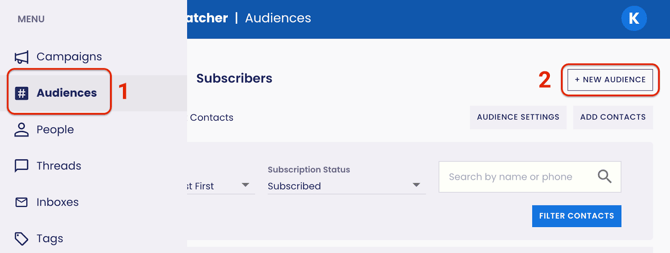
1. Navigate to your **Audiences** page.
2. Click on the **+ New Audience** button on the top right of the page.
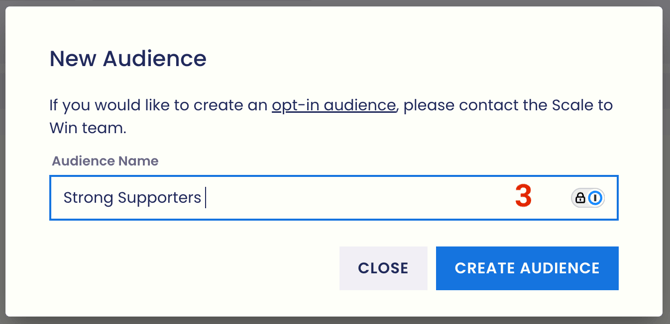
3. Give your new audience a name and click on the **Create Audience** button.
****
Once you’ve created an audience, you can **Add Contacts**. Read below for further information.
### **Add Contacts:**
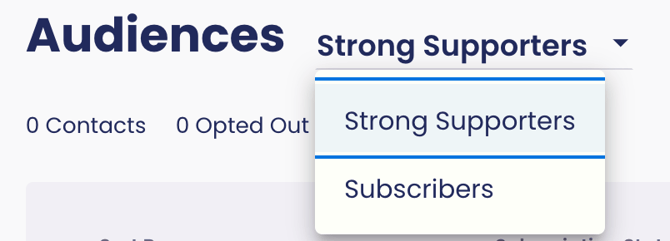
After you’ve created an Audience and any custom fields you want to use, select the Audience you want to add contacts to.
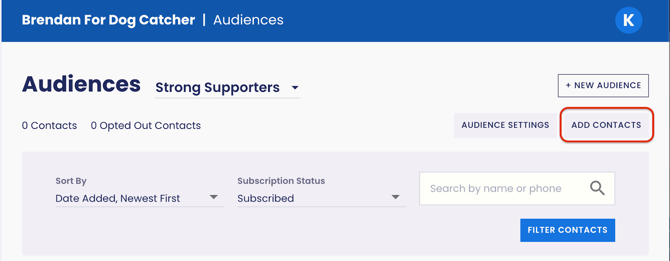
From that Audience’s page, click **Add Contacts** in the top right.
From the dropdown, you can choose how you want to add contacts:
- **File Import:** Upload contacts in bulk using a CSV file.
- **Text Entry:** Add contacts manually.
- **GCS Import:** Add contacts from files in the bucket shared with Scale to Win through your connected[Google Cloud Storage Integration](https://support.scaletowin.com/google-cloud-storage-import?hsLang=en).
- **ActBlue:** Add donors from ActBlue from your connected [ActBlue Integration](https://support.scaletowin.com/act-blue-integrations-how-to-set-up?hsLang=en). Choose:
- **One-time import:** Use filters to select and import existing ActBlue donors who meet your criteria. Requires the ActBlue One-Time Import (API) integration to be enabled on your subaccount.
- **Continuous updates:** Automatically add new ActBlue donors to your Subscribers Audience from the time it is enabled. Requires the ActBlue Continuous Updates (Webhook) integration to be enabled on your subaccount. Shortcode only.
- **ActionKit:** Import contacts from a report in your connected[ActionKit Integration](https://support.scaletowin.com/action-kit-integration?hsLang=en). Your report must include phone numbers, first names, and last names. You’ll also need the report shortname or ID and the phone number column header.
- **GCS Import:** Add contacts from files in the bucket shared with Scale to Win through your connected[Google Cloud Storage Integration](https://support.scaletowin.com/google-cloud-storage-import?hsLang=en).
As part of the import, map your source data to the corresponding contact fields in Scale to Win. Audiences include built-in fields for **first name, last name, phone number, address, city, state, and ZIP code**.
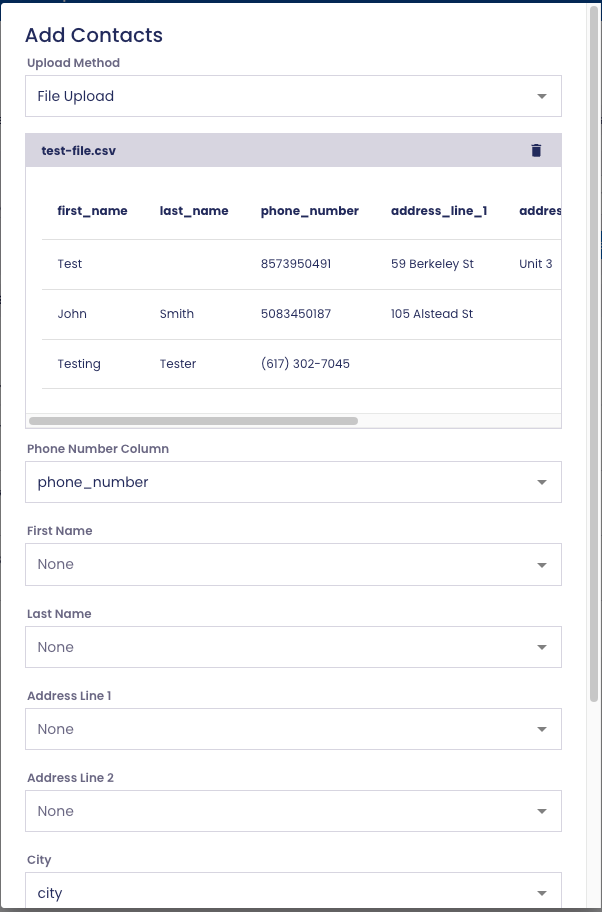
You can also create additional **custom fields** from **Audience Settings** and map data to those fields during import. Both built-in and custom fields can be used later to segment your Audience and create **Saved Searches**.
Once you’ve selected your import source and mapped the relevant fields, we’ll run the phone numbers through our lookup service to identify and exclude invalid numbers.
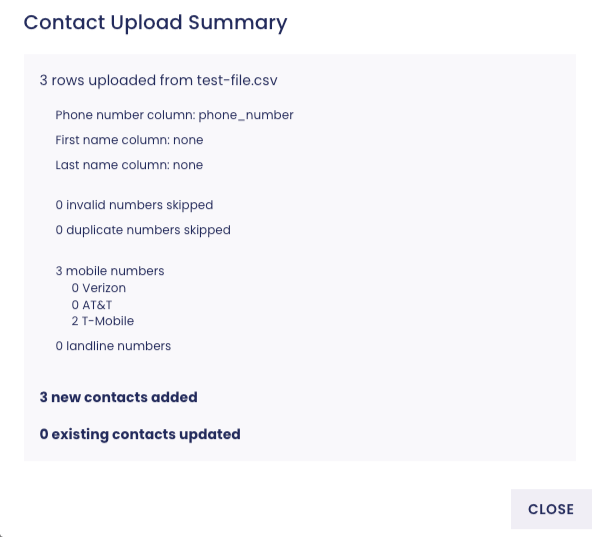
When the import is complete, the **Contact Upload Summary** will show:
- Total contacts uploaded
- Columns mapped
- Invalid numbers skipped
- Duplicate numbers skipped
- Total mobile numbers, including a breakdown by carrier
- Total landline numbers
- New contacts added
- Existing contacts updated
---
### **Audience Settings:**
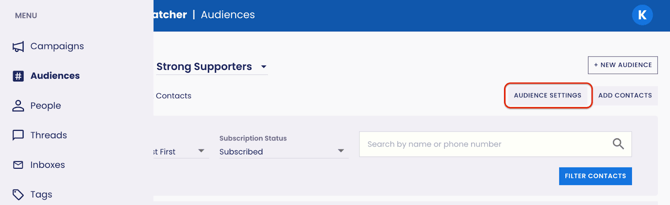
From the **Audience Settings** page, you can:
- Edit the name of your Audience
- Add or manage custom fields
- Export your Audience contacts
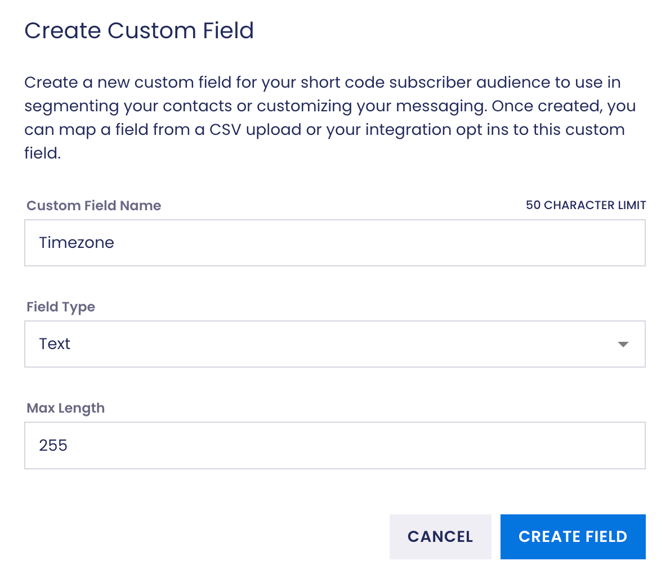
Custom fields let you store additional information about your contacts and use that data to segment your Audience later. For example, you could add a timezone field and use it to create a **Saved Search** for contacts in a specific timezone.
---
### **Using Audiences in Campaigns:**
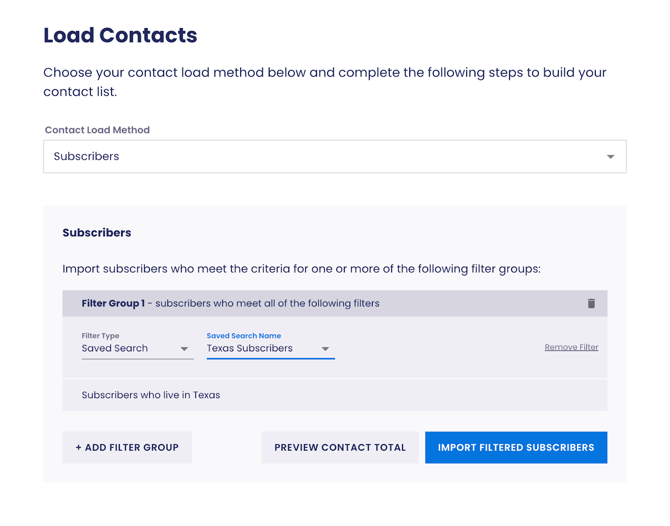
You can use filters or[saved searches](https://support.scaletowin.com/saved-search?hsLang=en) to load a segment of your Audience during the **Load Contacts** step of building a campaign.
On the **Load Contacts** step, choose the **Contact Load Method: Audience, choose the audience you want to use** and click either **Filter Contacts** or **Import Contacts**
**Note:** Saved Searches are dynamic. This means every time you load a saved search, Scale to Win Text will show an up-to-date list of contacts that match your criteria.
---
### **Creating Opt-In Audiences:**
Scale to Win Text empowers you to build an **Opt-in Audience** that you can text using a 10DLC, Toll-Free, and/or Short Code number.
When you separate opted-in contacts into dedicated opt-in **audiences**, you ensure your campaigns go to a warm list, leading to better reply rates, click-throughs, and donations.
Scale to Win Text now allows organizations to build an **Opt-in Audience** that you can text using a **10DLC or Toll-Free number**. More information can be found on this feature [here.](https://support.scaletowin.com/running-an-opt-in-program-with-long-code?hsLang=en)
If you are interested in setting up an opt-in audience or setting up a 10DLC or Toll-Free number to message a subscribed audience,[please reach out to our Client Support team](https://support.scaletowin.com/contact?hsLang=en).
- [Scale to Win Text](https://support.scaletowin.com/scale-to-win-text?hsLang=en#main-content)
- [Getting Started](https://support.scaletowin.com/scale-to-win-text?hsLang=en#getting-started)
- [Creating Text Campaigns](https://support.scaletowin.com/scale-to-win-text?hsLang=en#creating-text-campaigns)
- [Navigating Your Menu & Features](https://support.scaletowin.com/scale-to-win-text?hsLang=en#navigating-your-menu-features)
- [Integrations & Data Management](https://support.scaletowin.com/scale-to-win-text?hsLang=en#integrations-data-management)
- [Best Practices, Troubleshooting & FAQs](https://support.scaletowin.com/scale-to-win-text?hsLang=en#best-practices-troubleshooting-faqs)
- [Glossary](https://support.scaletowin.com/scale-to-win-text?hsLang=en#glossary)
- [Scale To Win Text | Phone Number Registration](https://support.scaletowin.com/scale-to-win-text-phone-number-registration?hsLang=en#main-content)
- [10DLC](https://support.scaletowin.com/scale-to-win-text-phone-number-registration?hsLang=en#10dlc)
- [Short Code](https://support.scaletowin.com/scale-to-win-text-phone-number-registration?hsLang=en#short-code)
- [Compliance Guidelines](https://support.scaletowin.com/scale-to-win-text-phone-number-registration?hsLang=en#compliance-guidelines)
- [Scale To Win Text | Phone Number Types](https://support.scaletowin.com/scale-to-win-text-phone-number-types?hsLang=en#main-content)
- [10DLC](https://support.scaletowin.com/scale-to-win-text-phone-number-types?hsLang=en#10dlc)
- [Short Code](https://support.scaletowin.com/scale-to-win-text-phone-number-types?hsLang=en#short-code)
- [Scale To Win Text | Guides for Texters](https://support.scaletowin.com/scale-to-win-text-guides-for-texters?hsLang=en#main-content)
- [Getting Started](https://support.scaletowin.com/scale-to-win-text-guides-for-texters?hsLang=en#getting-started)
- [Texter View](https://support.scaletowin.com/scale-to-win-text-guides-for-texters?hsLang=en#texter-view)
- [Scale to Win Dialer](https://support.scaletowin.com/scale-to-win-dialer?hsLang=en#main-content)
- [Getting Started](https://support.scaletowin.com/scale-to-win-dialer?hsLang=en#getting-started)
- [Creating Call Campaigns](https://support.scaletowin.com/scale-to-win-dialer?hsLang=en#creating-call-campaigns)
- [Features](https://support.scaletowin.com/scale-to-win-dialer?hsLang=en#features)
- [Navigating Your Menu](https://support.scaletowin.com/scale-to-win-dialer?hsLang=en#navigating-your-menu)
- [Managing Call Campaigns](https://support.scaletowin.com/scale-to-win-dialer?hsLang=en#managing-call-campaigns)
- [Integrations & Data Management](https://support.scaletowin.com/scale-to-win-dialer?hsLang=en#integrations-data-management)
- [Caller Academy | Guides for Callers](https://support.scaletowin.com/caller-academy-guides-for-callers?hsLang=en#main-content)
- [Getting Started](https://support.scaletowin.com/caller-academy-guides-for-callers?hsLang=en#getting-started)
- [Making Calls & Clicking](https://support.scaletowin.com/caller-academy-guides-for-callers?hsLang=en#making-calls-clicking)
- [Billing](https://support.scaletowin.com/billing?hsLang=en#main-content)
- [Setting up your billing portal](https://support.scaletowin.com/billing?hsLang=en#setting-up-your-billing-portal)
- [Payment Methods](https://support.scaletowin.com/billing?hsLang=en#payment-methods)
- [Understanding Charges](https://support.scaletowin.com/billing?hsLang=en#understanding-charges)
[](http://scaletowin.com)
Copyright © 2025, Scale to Win