---
title: Budgets
description: Learn how to set, enforce, and manage subaccount budgets in Scale to Win Text, including spending caps, warning thresholds, budget resets, and alerts for overages.
---
[Skip to content](https://support.scaletowin.com/budgets#main-content)
English
Show submenu for translations
[](https://www.scaletowin.com/)
Open main navigation
Close main navigation
- English
Show submenu for translations
- [Contact us](https://support.scaletowin.com/contact)
[Contact us](https://support.scaletowin.com/contact?hsLang=en)
Hi! How can we help?
- There are no suggestions because the search field is empty.
1. [Scale to Win](https://support.scaletowin.com/?hsLang=en)
2. [Scale to Win Text](https://support.scaletowin.com/scale-to-win-text?hsLang=en)
3. [Navigating Your Menu & Features](https://support.scaletowin.com/scale-to-win-text?hsLang=en#navigating-your-menu-features)
# Budgets
| **TABLE OF CONTENTS** |
| --- |
| - [Turn on Budgets](https://support.scaletowin.com/budgets#turn-on-budget) - [Viewing Budgets](https://support.scaletowin.com/budgets#viewing-budgets) - [Editing Budgets](https://support.scaletowin.com/budgets#editing-budgets) - [Resetting Budgets](https://support.scaletowin.com/budgets#resetting-budget) - [Budget Overage](https://support.scaletowin.com/budgets#budget-overages) - [View Budget and Balance](https://support.scaletowin.com/budgets#view-budget-balance) - [Texter View](https://support.scaletowin.com/budgets#texter-view) |
The Budgets feature allows Organization Owners to turn on budgets for some or all of their subaccounts and to set a spending cap. If the spending cap is reached or exceeded, sending will be paused for the subaccount until the budget is turned off, the budget is reset to create a new budgeting period, or an additional budget is allocated.
### **Turn on Budgets**
**Note:** Only Organization Owners have the permission to turn on budgets.
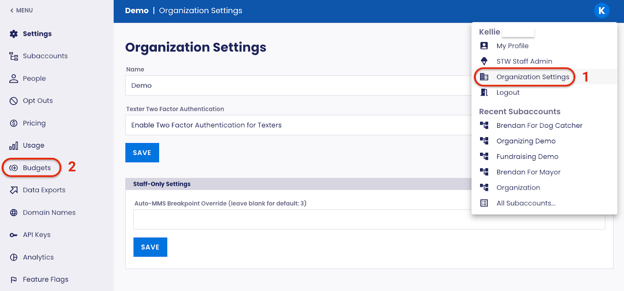
**Step 1:** Navigate to the **Organization Settings** menu
**Step 2:** Click on **Budgets** in the sidebar
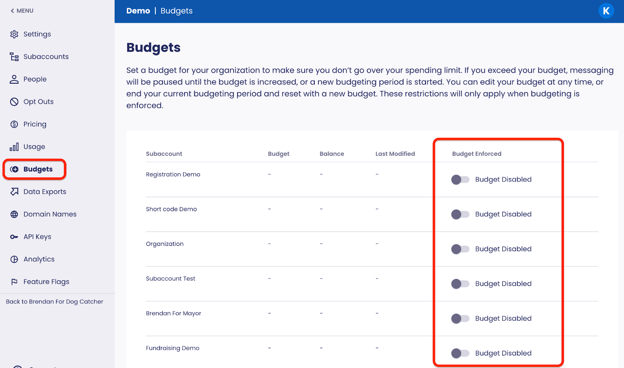
**Step 3**: You will see a list of all subaccounts within your account with each subaccount’s budget status reflected as **Disabled** or **EnforcedStep 4:** Click on the toggle to enforce a budget for a subaccount
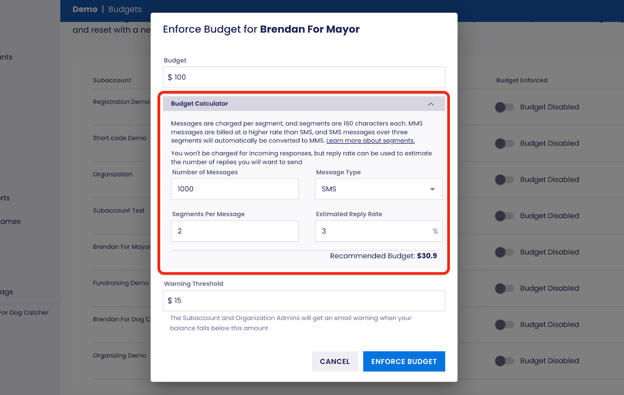
**Step 5:** Set the **Budget** amount
**Step 6:** Set the **Warning Threshold** (When a **Warning Threshold** is set, the subaccount admin will be alerted by email when their balance falls below the set amount)
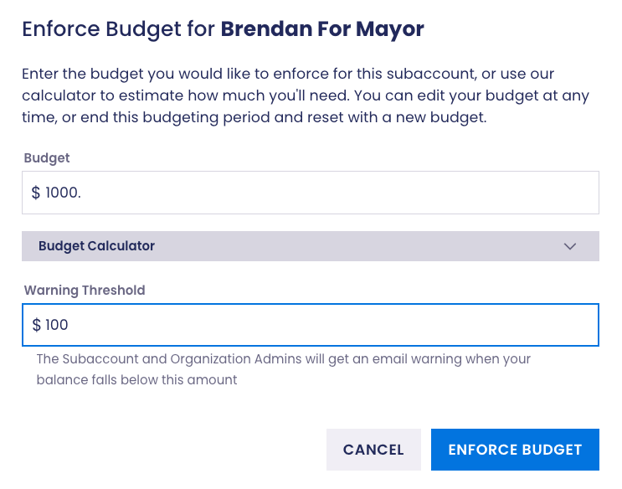
**Step 7:** (optional) If needed, use the **Budget Calculator** to calculate the budget amount based on estimated messages
**Step 8**: Click **Enforce Budget**
****
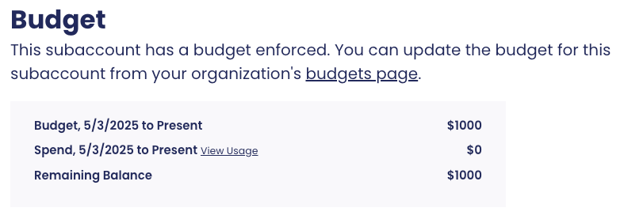
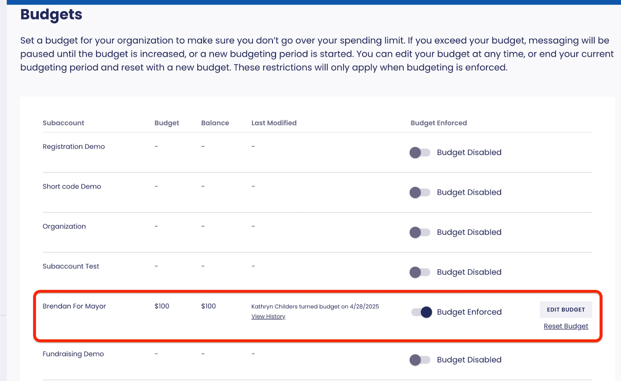
Below you can see the Budget for this subaccount is marked as "Budget Enforced”. Also visible are the Budget amount, the Balance, and when the budget was last modified.
#### **Viewing Budgets**
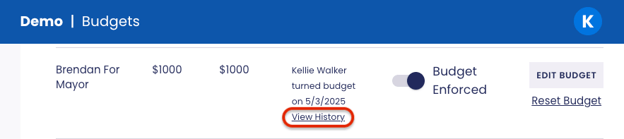
To view a budget select **View History** on any subaccount that has or previously had a budget.
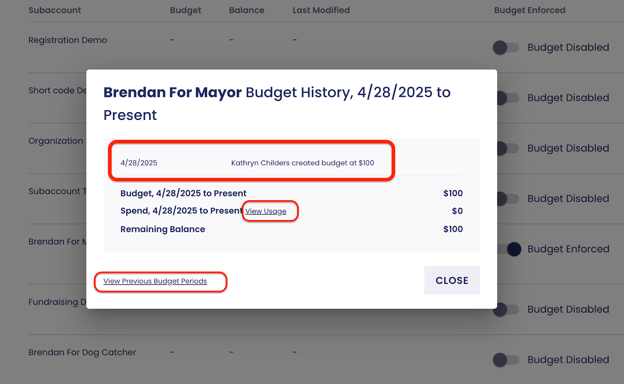
Here you can see all actions taken in the current budget period. You can also access a link to the **Usage Page** **View** and the **Previous Budget Periods** as well.
### **Editing Budgets**
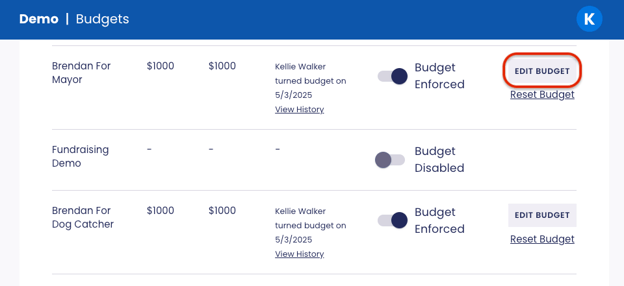
To edit a budget, select **Edit Budget** on an Enforced Budget.
The budget window will appear with the current budget fields for you to edit
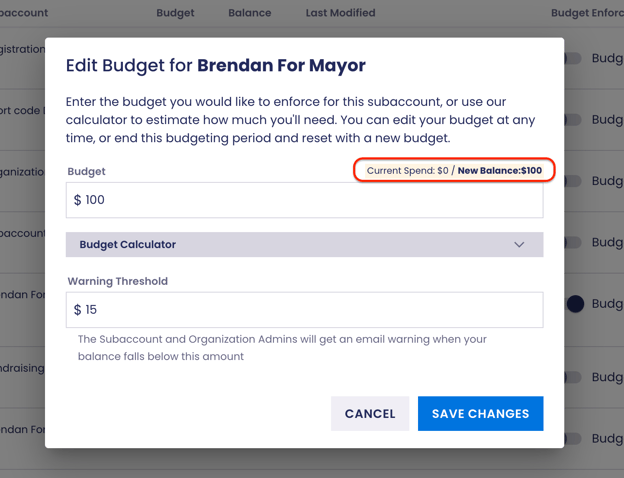
#### Once you’ve edited the budget, click **Save Changes.**
### **Resetting Budgets**
Resetting the budget creates a new budgeting period, which overrides any existing budget balance.
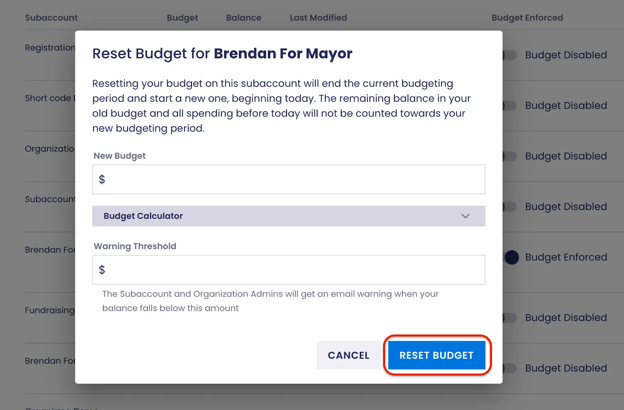
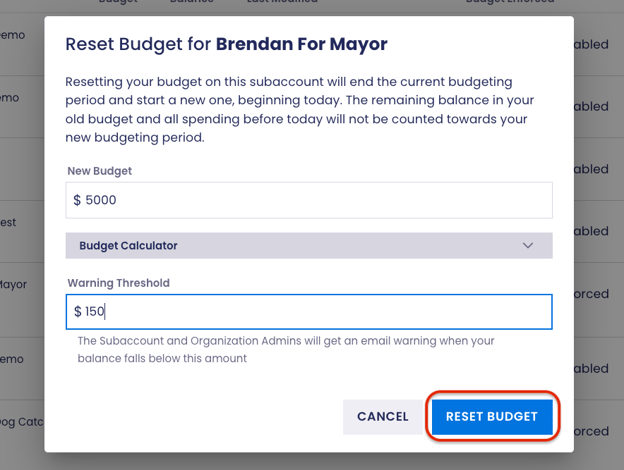
The **Reset Budget** window appears with all fields blank so you can reset your budget. After entering the new budget budget amount and warning threshold, click **Reset Budget** to save changes.
### **Budget Overage**
When budgets are enabled and a campaign is sending, Scale to Win Text will check every 1,000 messages to determine if a subaccount has exhausted the set budget and prevent additional sending once the budget for the subaccount has been exceeded. Overages are limited to up to 1,000 messages per active campaign. For example, an account could exceed its budget if multiple campaigns are sending simultaneously.
#### If a subaccount reaches or exceeds its budget, an alert email is sent to the Organization Owner(s) and subaccount admins. Additionally, Organization Owner(s) and subaccount admins will see a warning banner across every page of the tool indicating messaging has paused and to increase the budget.
#### **Note:** When an account exceeds its budget, all short code automated opt-in and opt-out messages will continue to be sent, but automated keywords responses will not.
#### **View Budget and Balance**
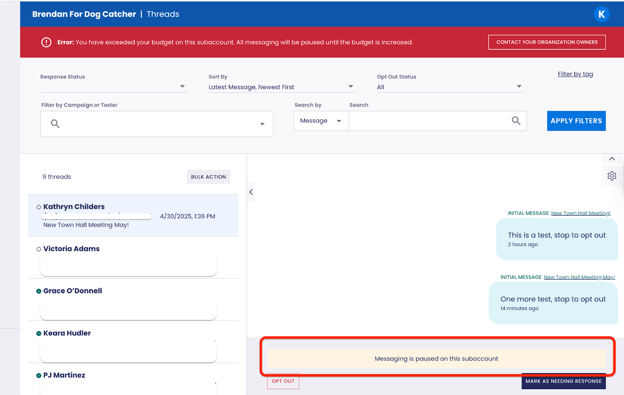
#### **Note:** Only Organization Owners and subaccount admins are able to view Budgets and their balances. To view a Budget, navigate to your subaccount Settings from the global sidebar. Scroll down to the **Budget** section where you will see a table reflecting that subaccount’s current budget and balance.
#### **Texter View**
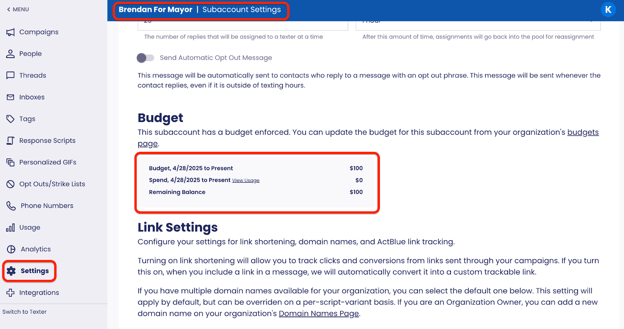
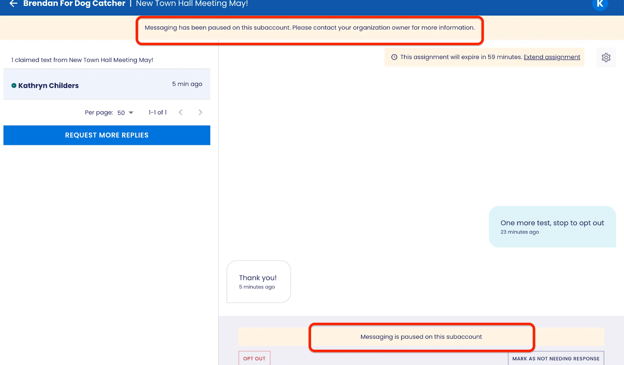
#### Texters **cannot** access or view the Budget. If a subaccount has reached or exceeded the budget the Texter will see a **Paused Messaging Banner** and they will not be able to send.
- [Scale to Win Text](https://support.scaletowin.com/scale-to-win-text?hsLang=en#main-content)
- [Getting Started](https://support.scaletowin.com/scale-to-win-text?hsLang=en#getting-started)
- [Creating Text Campaigns](https://support.scaletowin.com/scale-to-win-text?hsLang=en#creating-text-campaigns)
- [Navigating Your Menu & Features](https://support.scaletowin.com/scale-to-win-text?hsLang=en#navigating-your-menu-features)
- [Integrations & Data Management](https://support.scaletowin.com/scale-to-win-text?hsLang=en#integrations-data-management)
- [Best Practices, Troubleshooting & FAQs](https://support.scaletowin.com/scale-to-win-text?hsLang=en#best-practices-troubleshooting-faqs)
- [Glossary](https://support.scaletowin.com/scale-to-win-text?hsLang=en#glossary)
- [Scale To Win Text | Phone Number Registration](https://support.scaletowin.com/scale-to-win-text-phone-number-registration?hsLang=en#main-content)
- [10DLC](https://support.scaletowin.com/scale-to-win-text-phone-number-registration?hsLang=en#10dlc)
- [Short Code](https://support.scaletowin.com/scale-to-win-text-phone-number-registration?hsLang=en#short-code)
- [Compliance Guidelines](https://support.scaletowin.com/scale-to-win-text-phone-number-registration?hsLang=en#compliance-guidelines)
- [Scale To Win Text | Phone Number Types](https://support.scaletowin.com/scale-to-win-text-phone-number-types?hsLang=en#main-content)
- [10DLC](https://support.scaletowin.com/scale-to-win-text-phone-number-types?hsLang=en#10dlc)
- [Short Code](https://support.scaletowin.com/scale-to-win-text-phone-number-types?hsLang=en#short-code)
- [Scale To Win Text | Guides for Texters](https://support.scaletowin.com/scale-to-win-text-guides-for-texters?hsLang=en#main-content)
- [Getting Started](https://support.scaletowin.com/scale-to-win-text-guides-for-texters?hsLang=en#getting-started)
- [Texter View](https://support.scaletowin.com/scale-to-win-text-guides-for-texters?hsLang=en#texter-view)
- [Scale to Win Dialer](https://support.scaletowin.com/scale-to-win-dialer?hsLang=en#main-content)
- [Getting Started](https://support.scaletowin.com/scale-to-win-dialer?hsLang=en#getting-started)
- [Creating Call Campaigns](https://support.scaletowin.com/scale-to-win-dialer?hsLang=en#creating-call-campaigns)
- [Features](https://support.scaletowin.com/scale-to-win-dialer?hsLang=en#features)
- [Navigating Your Menu](https://support.scaletowin.com/scale-to-win-dialer?hsLang=en#navigating-your-menu)
- [Managing Call Campaigns](https://support.scaletowin.com/scale-to-win-dialer?hsLang=en#managing-call-campaigns)
- [Integrations & Data Management](https://support.scaletowin.com/scale-to-win-dialer?hsLang=en#integrations-data-management)
- [Caller Academy | Guides for Callers](https://support.scaletowin.com/caller-academy-guides-for-callers?hsLang=en#main-content)
- [Getting Started](https://support.scaletowin.com/caller-academy-guides-for-callers?hsLang=en#getting-started)
- [Making Calls & Clicking](https://support.scaletowin.com/caller-academy-guides-for-callers?hsLang=en#making-calls-clicking)
- [Billing](https://support.scaletowin.com/billing?hsLang=en#main-content)
- [Setting up your billing portal](https://support.scaletowin.com/billing?hsLang=en#setting-up-your-billing-portal)
- [Payment Methods](https://support.scaletowin.com/billing?hsLang=en#payment-methods)
- [Understanding Charges](https://support.scaletowin.com/billing?hsLang=en#understanding-charges)
[](http://scaletowin.com)
Copyright © 2025, Scale to Win