---
title: Build Your Campaign
description: Learn how to build your campaign
---
[Skip to content](https://support.scaletowin.com/build-your-campaign#main-content)
English
Show submenu for translations
[](https://www.scaletowin.com/)
Open main navigation
Close main navigation
- English
Show submenu for translations
- [Contact us](https://support.scaletowin.com/contact)
[Contact us](https://support.scaletowin.com/contact?hsLang=en)
Hi! How can we help?
- There are no suggestions because the search field is empty.
1. [Scale to Win](https://support.scaletowin.com/?hsLang=en)
2. [Scale to Win Text](https://support.scaletowin.com/scale-to-win-text?hsLang=en)
3. [Creating Text Campaigns](https://support.scaletowin.com/scale-to-win-text?hsLang=en#creating-text-campaigns)
# Build Your Campaign
| **TABLE OF CONTENTS** |
| --- |
| - [Create a New Campaign](https://support.scaletowin.com/build-your-campaign#new-campaign) - [Step 1: Basics](https://support.scaletowin.com/build-your-campaign#step-1-basics) - [Step 2: Sending Numbers](https://support.scaletowin.com/build-your-campaign#step-2-sending-numbers) - [Step 3: Load Contacts](https://support.scaletowin.com/build-your-campaign#step-3-load-contacts) - [Step 4: Contact Mapping](https://support.scaletowin.com/build-your-campaign#step-4-contact-mapping) - [Step 5: Suppressions (optional)](https://support.scaletowin.com/build-your-campaign#step-5-suppressions) - [Step 6: Initial Message](https://support.scaletowin.com/build-your-campaign#step-6-initial-messaging) - [Step 7: Response Scripts](https://support.scaletowin.com/build-your-campaign#step-7-response-script) - [Step 8: Tags](https://support.scaletowin.com/build-your-campaign#step-8-tags) - [Step 9: Start Campaign](https://support.scaletowin.com/build-your-campaign#step-9-start-campaign) - [Send Your Campaign](https://support.scaletowin.com/build-your-campaign#send-your-campaign) - [Send Options](https://support.scaletowin.com/build-your-campaign#send-options) - [Schedule Options](https://support.scaletowin.com/build-your-campaign#schedule-options) - [View Your Results](https://support.scaletowin.com/build-your-campaign#view-your-results) |
**Note:** To get started with your Scale to Win Text account**, you need to accept the invitation sent to you in your onboarding email.**
### **Create a New Campaign**
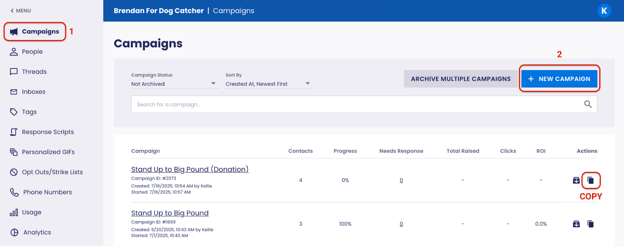
To create a campaign, navigate to your **Campaigns** page and click the blue **+New Campaign** button. Alternatively, you can make a copy of an existing campaign by clicking the double page icon next to it. When a campaign is copied, all original settings, including initial message scripts, are retained. However, a new contact list will still be required.
#### **Step 1: Basics**
Name your campaign and add an optional description and campaign metadata. If you plan to load a list from or sync data back to VAN, select your[NGP VAN / EveryAction Integration](https://support.scaletowin.com/how-to-set-up-van-integration?hsLang=en). You can also connect an[Event](https://support.scaletowin.com/events?hsLang=en) to your campaign.
You can override the campaign’s default texting hours, batch size, and assignment duration. These defaults can be managed from your **Settings** page.
If your subaccount has one or more[inboxes](https://support.scaletowin.com/inboxes-in-scale-to-win-text?hsLang=en), you can route campaign replies to an inbox. When you select an inbox, the campaign’s batch size and assignment duration will automatically use that inbox’s settings.
You can also configure the[Texter Information Panel](https://support.scaletowin.com/texter-information-panel?hsLang=en) to give Texters additional information they can reference while engaging with contacts.
#### **Step 2: Sending Numbers**
Select the phone number from which your texting campaign messages will be sent. The available sending number options, which include[10DLC](https://support.scaletowin.com/10dlc-registration-requirements?hsLang=en),[Toll-Free](https://support.scaletowin.com/how-to-register-for-toll-free?hsLang=en), and[Short Code](https://support.scaletowin.com/register-for-short-code?hsLang=en), are determined by which registration process(es) you’ve completed successfully. If you have multiple phone numbers for a particular registration (i.e., if you alternate between two area codes), you can select your preferred number from a dropdown list.
#### **Step 3: Load Contacts**
Choose how you want to add contacts to your campaign. Available options depend on the integrations configured for your subaccount and campaign.
Campaigns can include up to **1 million contacts**, regardless of how contacts are loaded. Contact our[Client Support team](https://support.scaletowin.com/contact?hsLang=en) if you require loading more than 1 million contacts into your campaign.
Choose from:
- **CSV Upload:** Upload a CSV file from your computer. Your file must include phone number and first name. Last name is optional.
- Column headers do not need to use specific names. For example, cell, phone, and phone\_number can all be used for your phone number column.
- **Follow-Up Campaign:** Retarget contacts from previous campaigns based on criteria such as send, reply, donation, carrier, or tag status.
- If your campaign has a VAN integration enabled, you will only be able to select previous campaigns with the same VAN settings.
- **My Audiences:** Load an entire Audience or use a **Saved Search** to send to a filtered group of contacts.
- **ActBlue:** Load donors from a connected[ActBlue Integration](https://support.scaletowin.com/act-blue-integrations-how-to-set-up?hsLang=en). Use the available filters to select which donors you want to include.
- **ActionKit:** Load contacts from a report in your connected[ActionKit Integration](https://support.scaletowin.com/action-kit-integration?hsLang=en). You'll need the report's shortname or ID and the column header containing phone numbers.
- **NGP VAN / EveryAction:** Load a list or Saved Search from your connected[NGP VAN Integration](https://support.scaletowin.com/how-to-set-up-van-integration?hsLang=en). The VAN integration must first be selected during the **Basics** step.
- Campaign results will sync back to VAN using each contact's VAN ID.
- **Google Cloud Storage (GCS Import):** Load a file from your connected[GCS Integration](https://support.scaletowin.com/google-cloud-storage-import?hsLang=en).
**Using VAN?** If you want campaign results to sync back to VAN, contacts loaded from supported non-VAN sources must include VAN IDs. **Audience and ActBlue are not available as contact load methods when a VAN integration is enabled.**
#### **Step 4: Contact Mapping**
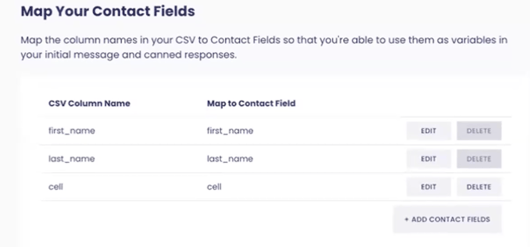
Contact Mapping lets you choose which fields from your contact data can be used as variables in your Initial Messages and Response Scripts. From this step, you can:
- **Edit** an existing mapping
- **Delete** a field you don't want to use
- **Add a Contact Field** by selecting a column from your contact data and giving it a Contact Field name
For example, you can map an email column from your contact list to an email Contact Field, then use that field as a variable in your campaign messaging.
You can return to Contact Mapping if you add a new field while building your initial message.
You can also select a sample contact from your contact list. This contact is used to preview your messages and send test/preview texts. Read our article on[Sending Preview Texts](https://support.scaletowin.com/sending-preview-texts?hsLang=en) for more information.
**Note:** All Contact Fields used in your messaging must be mapped before you can launch your campaign.
#### **Step 5: Suppressions (optional)**
Use suppressions to exclude specific contacts from receiving messages in your campaign. You can add or update suppressions before or after the campaign starts.
Choose from the following suppression options:
- **CSV Upload:** Suppress contacts by uploading a CSV file.
- **Campaigns:** Suppress contacts who also appear in other campaigns within the subaccount. You can suppress all campaign overlaps, select specific campaigns, or filter selected campaigns to suppress only contacts who meet certain criteria, such as reply, donation, send, or tag status.
- **Subscribers:** Suppress contacts in your Subscriber Audience. This option is only available if your subaccount has an opt-in number.
- **Audiences:** Suppress contacts in a selected Audience.
- **Carriers:** Suppress contacts based on their mobile carrier.
-1.png?width=471&height=349&name=image%20(1)-1.png)
#### **Step 6: Initial Message**
Craft one or more initial messages and enable link shortening and tracking.
- **Character Count:** View the total number of characters in your message and how many are left in your segment.
- **Add Contact Fields:** Add fields from your contact data as variables in your message. Be sure to map any fields you use in **Step 4: Contact Mapping**. If a field in your messaging is not mapped, you will not be able to launch your campaign.
- If an Event is connected to the campaign, available event fields will be selectable. Read more about [Events](https://support.scaletowin.com/events?hsLang=en).
- **Upload Media File:** To convert your message to MMS, upload a media file. The maximum file size is 500KB. Refer to our[MMS & SMS Campaigns: Setup](https://support.scaletowin.com/mms-sms-campaigns-setup-tips-and-faqs?hsLang=en), Tips, and FAQs article for further information.
- **Liquid Template:** Use a Liquid template to dynamically generate content. Liquid is a template language that allows the insertion of variables, control structures such as if statements and loops, and other logic into templates. Read more about[Liquid Templates](https://support.scaletowin.com/liquid-template?hsLang=en).
- **Add a Variant:** Add multiple versions of your Initial Message to a campaign to perform A/B tests. Learn more about[Script Variants](https://support.scaletowin.com/scripts-variants-feature?hsLang=en).
- **Enable Shortlink by Script Variant:** Choose from available shortlinks. You can customize this for each script variant, including selecting different domains. The system will automatically locate the URL in your script. Learn more about[Shortlinks](https://support.scaletowin.com/requesting-domains-using-shortlinks?hsLang=en).
- **Preview Message:** View your message with auto-filled contact fields from the sample contact selected earlier. You can also replace those values with test data for testing. If shortlinks are enabled, a clickable test link will be displayed. Read more about[Sending Preview Texts](https://support.scaletowin.com/sending-preview-texts?hsLang=en).
**Note:** Initial Messages **must** clearly identify your organization as the message sender and include standard opt-out language such as "Reply Stop to Opt-Out" or "Stop = End".
Read our article on [Mandatory Opt-Out & Sender Identification Language](https://support.scaletowin.com/mandatory-opt-out-sender-identification-language?hsLang=en), or [Opt-Outs & Strike Lists](https://support.scaletowin.com/opt-outs-and-strike-lists?hsLang=en) for further information.
#### **Step 7: Response Scripts**
You can import existing Response Scripts, add campaign-specific Groups, or add campaign-specific Responses from this step. Learn more about [Response Scripts here.](https://support.scaletowin.com/response-scripts?hsLang=en)
#### **Step 8: Tags**
Manually import tags from your **Global Tags** page into your campaign. This section may start blank or include any tags that are embedded within your imported Response Scripts. Learn more about [Tags](https://support.scaletowin.com/tags?hsLang=en)here.
#### **Step 9: Start Campaign**
When you're ready to launch your campaign, select the **Start Campaign** button. Clicking this button will direct you to the Campaign Stats page, where you can then send your campaign. Your messages will not be sent automatically.
**Note:** The tool will alert you to any errors that require attention before proceeding.
#### **Send Your Campaign**
### **Send Options:**
**Test Your Campaign**
Before sending messages to campaign contacts, you can send test texts to a number on your preview numbers list or a new number using **Preview Text**.
Learn more about[Sending Preview Texts](https://support.scaletowin.com/sending-preview-texts?hsLang=en).
**Send Your Campaign**
When you're ready to send your campaign, choose between:
- **Full Send:** Send all texts in your campaign. Send immediately, or enter an optional send date and time to schedule the send.
- **Partial Send:** Choose the number of texts you want to send. Send immediately, or enter an optional initial send date and time to schedule the send.
- From the **Partial Send** window, you can also select **Add Autosend** to automatically continue sending based on ActBlue donation performance. Learn more in our [Partial Send with Autosend Feature](https://support.scaletowin.com/roi-send-feature?hsLang=en) article.
#### **View Your Results**
Your campaign results page provides comprehensive insights into your campaign's performance.
- [Scale to Win Text](https://support.scaletowin.com/scale-to-win-text?hsLang=en#main-content)
- [Getting Started](https://support.scaletowin.com/scale-to-win-text?hsLang=en#getting-started)
- [Creating Text Campaigns](https://support.scaletowin.com/scale-to-win-text?hsLang=en#creating-text-campaigns)
- [Navigating Your Menu & Features](https://support.scaletowin.com/scale-to-win-text?hsLang=en#navigating-your-menu-features)
- [Integrations & Data Management](https://support.scaletowin.com/scale-to-win-text?hsLang=en#integrations-data-management)
- [Best Practices, Troubleshooting & FAQs](https://support.scaletowin.com/scale-to-win-text?hsLang=en#best-practices-troubleshooting-faqs)
- [Glossary](https://support.scaletowin.com/scale-to-win-text?hsLang=en#glossary)
- [Scale To Win Text | Phone Number Registration](https://support.scaletowin.com/scale-to-win-text-phone-number-registration?hsLang=en#main-content)
- [10DLC](https://support.scaletowin.com/scale-to-win-text-phone-number-registration?hsLang=en#10dlc)
- [Short Code](https://support.scaletowin.com/scale-to-win-text-phone-number-registration?hsLang=en#short-code)
- [Compliance Guidelines](https://support.scaletowin.com/scale-to-win-text-phone-number-registration?hsLang=en#compliance-guidelines)
- [Scale To Win Text | Phone Number Types](https://support.scaletowin.com/scale-to-win-text-phone-number-types?hsLang=en#main-content)
- [10DLC](https://support.scaletowin.com/scale-to-win-text-phone-number-types?hsLang=en#10dlc)
- [Short Code](https://support.scaletowin.com/scale-to-win-text-phone-number-types?hsLang=en#short-code)
- [Scale To Win Text | Guides for Texters](https://support.scaletowin.com/scale-to-win-text-guides-for-texters?hsLang=en#main-content)
- [Getting Started](https://support.scaletowin.com/scale-to-win-text-guides-for-texters?hsLang=en#getting-started)
- [Texter View](https://support.scaletowin.com/scale-to-win-text-guides-for-texters?hsLang=en#texter-view)
- [Scale to Win Dialer](https://support.scaletowin.com/scale-to-win-dialer?hsLang=en#main-content)
- [Getting Started](https://support.scaletowin.com/scale-to-win-dialer?hsLang=en#getting-started)
- [Creating Call Campaigns](https://support.scaletowin.com/scale-to-win-dialer?hsLang=en#creating-call-campaigns)
- [Features](https://support.scaletowin.com/scale-to-win-dialer?hsLang=en#features)
- [Navigating Your Menu](https://support.scaletowin.com/scale-to-win-dialer?hsLang=en#navigating-your-menu)
- [Managing Call Campaigns](https://support.scaletowin.com/scale-to-win-dialer?hsLang=en#managing-call-campaigns)
- [Integrations & Data Management](https://support.scaletowin.com/scale-to-win-dialer?hsLang=en#integrations-data-management)
- [Caller Academy | Guides for Callers](https://support.scaletowin.com/caller-academy-guides-for-callers?hsLang=en#main-content)
- [Getting Started](https://support.scaletowin.com/caller-academy-guides-for-callers?hsLang=en#getting-started)
- [Making Calls & Clicking](https://support.scaletowin.com/caller-academy-guides-for-callers?hsLang=en#making-calls-clicking)
- [Billing](https://support.scaletowin.com/billing?hsLang=en#main-content)
- [Setting up your billing portal](https://support.scaletowin.com/billing?hsLang=en#setting-up-your-billing-portal)
- [Payment Methods](https://support.scaletowin.com/billing?hsLang=en#payment-methods)
- [Understanding Charges](https://support.scaletowin.com/billing?hsLang=en#understanding-charges)
[](http://scaletowin.com)
Copyright © 2025, Scale to Win