|
TABLE OF CONTENTS |
The List Shuffle feature allows you to shuffle the order in which the contacts in your texting campaigns are messaged. If you don’t utilize List Shuffle, the contacts in your campaign will be messaged in the order in which they were uploaded.
Shuffling the send order for your campaigns is especially helpful if you’re starting with a test to a portion of your contact list. By shuffling, you ensure your results won’t be skewed by repeatedly testing the same sample group.
List Shuffle can be enabled for each of your subaccounts by an Organization Owner from the Organization Settings page. Once enabled in a subaccount, admins can choose whether or not to shuffle contacts at the campaign level.
Enabling List Shuffle
To enable List Shuffle:
Step 1: Click your first initial in the top right corner of your screen and navigate to Organization Settings.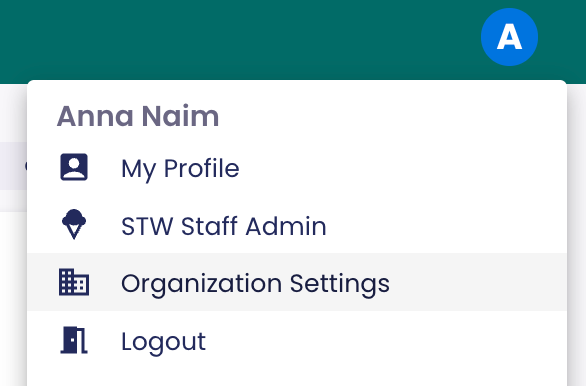
Step 2: On the Settings page, scroll down to find the section labeled List Shuffle. Here, you’ll see the option to turn List Shuffle on or off for specific subaccounts, or for all subaccounts.
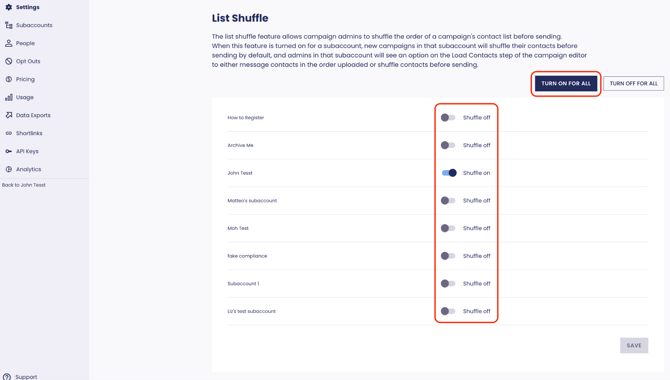
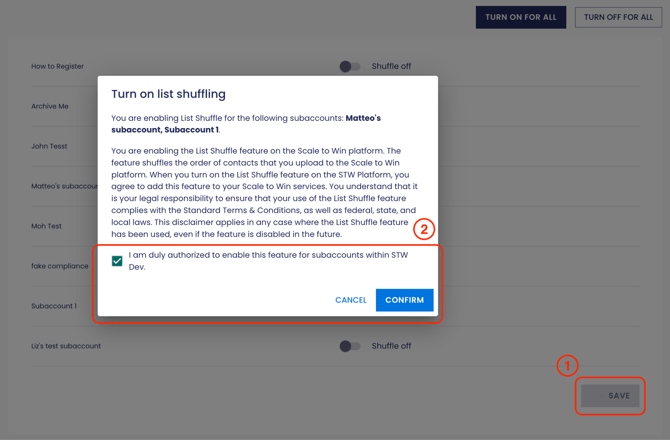
Step 3: Once you’ve made your selections, click Save. You’ll see a popup window with a legal disclaimer. To finish saving, check the box acknowledging the disclaimer and then click Confirm.
Using List Shuffle in a Campaign
Once List Shuffle is enabled in a subaccount, admins can choose whether to shuffle the contact list for each campaign they build. The list shuffle setting for your campaign can be changed up until the campaign is started.
Note: Even when List Shuffle is turned on in a campaign, contacts will load in the order that they appear in your list. Your messages will still be sent to your contacts in a shuffled order.
- Create a campaign and navigate to the Load Contacts step (3).
- Below the Contact Load Method dropdown, you’ll see the List Shuffle toggle. List Shuffle can be used with any contact load method. By default, the toggle will be set to Shuffle On in new campaigns. If you make a copy of an existing campaign, the copy will maintain the List Shuffle setting of the original campaign. Click the toggle to switch between Shuffle On and Shuffle Off.
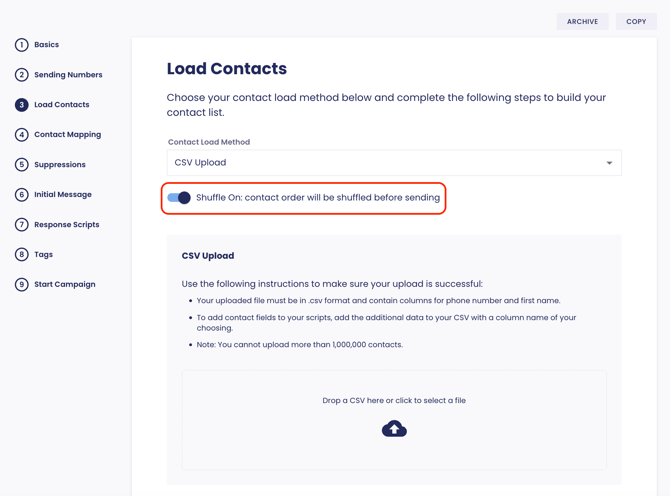
- You can turn List Shuffle on or off up until you start your campaign. After you’ve started your campaign, you won’t be able to change this setting but you will still be able to see it on the Load Contacts step (3).
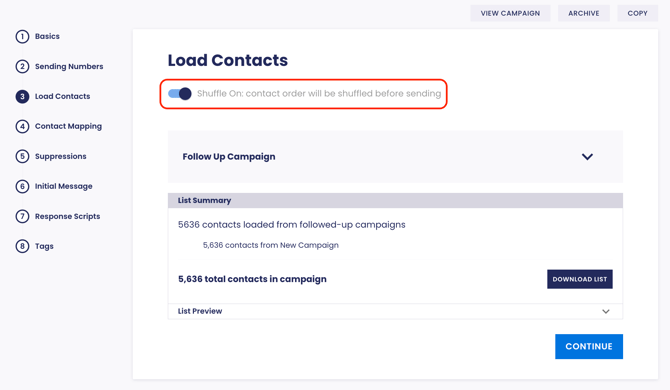
List Shuffle toggled on in a campaign that has been started.
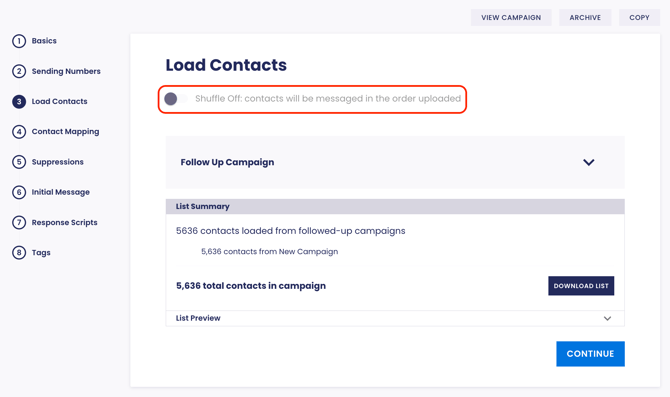
List Shuffle toggled off in a campaign that has been started.
Viewing Contact Messaging Order
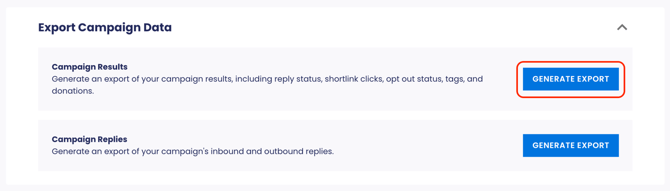
If List Shuffle is on, your contacts will be messaged in a shuffled order at the point of sending. After your send, you can see the order in which contacts were messaged by generating an export. Click on Export in the top right corner of the screen, or scroll down to the dropdown labeled Export Campaign Data.
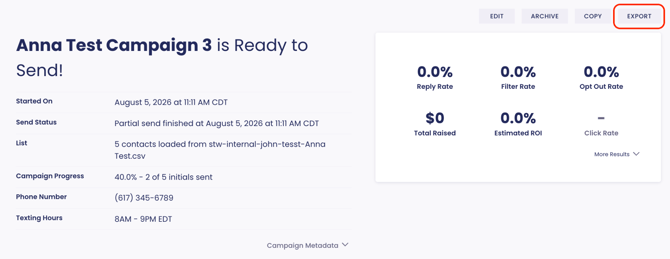
From there, click the blue Generate Export button next to Campaign Results. Download the export. Your export will show all contacts that were messaged, in the order in which they were messaged. The initial message script they received will be shown in the “Contact Script” column.