
With the Filters & Saved Search features, you can use filters and saved searches to segment your Audiences to plan for targeted sends and to load segmented audiences into campaigns.
Using the Filters & Saved Search Features:
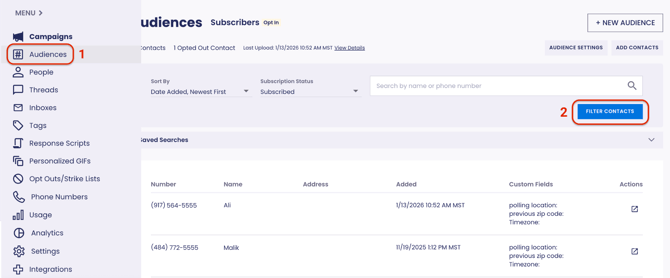
- Navigate to your Audiences page.
- Click the blue Filter Contacts button.
- Enter the parameters for your filters, then click Apply Filters. You will see a filtered list of contacts that meet your criteria.
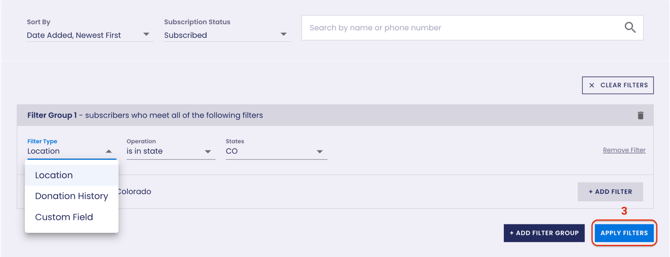
When filters are applied, you will see the number of contacts that fit the filter criteria as well as the number of opted out contacts. - If you would like to save your filters, click the Save Search button when you’re happy with the segment you’ve built.
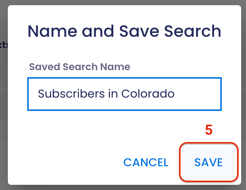
- Enter a name for the search and click Save.

Supported Filters
- Location
-
- is in state
- is not in state
- state is empty
- is in zip code
- is not in zip code
- is in the zip code radius
- is not in the zip code radius
- zip is empty
- is in area code
- is not in area code
- Donation history
- total contributions are greater than
- total contributions are less than
- total contributions are between range
- is a recurring donor
- is a recurring donor with recurring amount greater than
- is a recurring donor with recurring amount less than
- is a recurring donor with recurring amount between range
- is not a recurring donor
- has made a donation
- has not made a donation
- has made a donation on a mobile device
- has not made a donation on a mobile device
- has made a donation with ActBlue Express Lane
- is an ActBlue Express user
- last donation was greater than
- last donation was less than
- last donation is between range
- number of donations is greater than
- number of donations is less than
- number of donations is between range
- average donation is greater than
- average donation is less than
- average donation is between range
- highest donation is greater than
- highest donation is less than
- highest donation is between range
- has made a donation from a campaign
- has not made a donation from a campaign
- Engagement
- has replied
- has not replied
- has replied to a campaign
- has not replied to a campaign
- has clicked
- has not clicked
- has clicked on a campaign
- has not clicked on a campaign
- Custom field
- Data to Win: See Data to Win article
What is ActBlue Express Lane?
- ActBlue Express Lane is an ActBlue feature that allows donors to save payment profiles with ActBlue. Organizations can create links in ActBlue that enable one-click donation and contact information autofilling.
What is the difference between “has made a donation with ActBlue Express Lane” and “is Express Lane user"?
- “Has made a donation with ActBlue Express Lane” is an attribute of the individual donation. This will return any donor who has made a donation using Express Lane.
- “Is Express Lane user” is an attribute of the donor/contact. This will return any donor who is an Express Lane user, regardless of whether they have successfully made a donation using Express Lane.
Optional: View and Edit your Saved Search
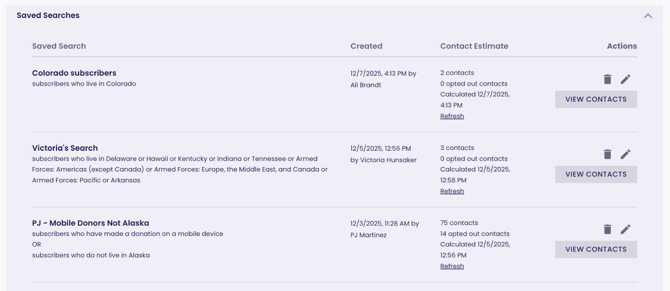
After you’ve saved your search, you can see all the details about the Saved Search including:
- A description of the filters applied
- Who created the Saved Search and when
- The contact estimate the last time the Saved Search was applied (contacts and opted out contacts) and the date and time that it was last calculated
- A Refresh button to re-calculate the number of contacts
- Contacts that match the filters applied to the subscriber list (click View Contacts)
-
Click View Contacts for a saved search to view the list of contacts who fit the parameters for your filters
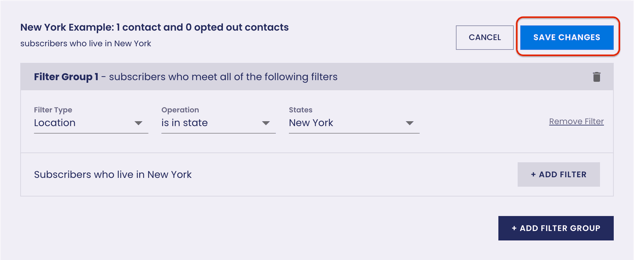
- To edit your Saved Search - click the pencil icon, update the filters, then click Saves Changes to update the Saved Search
Note: Saved Searches are dynamic. This means every time you load a saved search, Scale to Win Text will show an up-to-date list of contacts that match your criteria.
To Edit a Saved Search
- Click the pencil icon adjacent to the Saved Search you wish to edit.
- Update the filters, or add a filter group, then click Save Changes.
Use Filters & Saved Searches to Load Contacts In A Campaign
When building a campaign you can use filters or a saved search to load a segment of your Audience as contacts into the campaign.
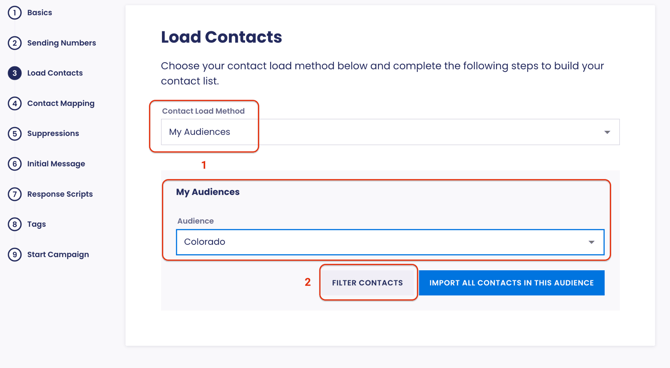
- On the Load Contacts step, choose the Contact Load Method: My Audiences and select the Audience you want to target form the drop down menu.
- Click Filter Contacts.
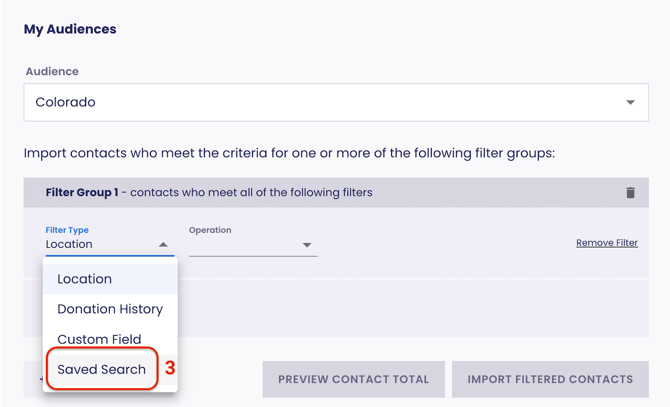
- Select the filters you would like to use or Saved Search from the filter type menu.
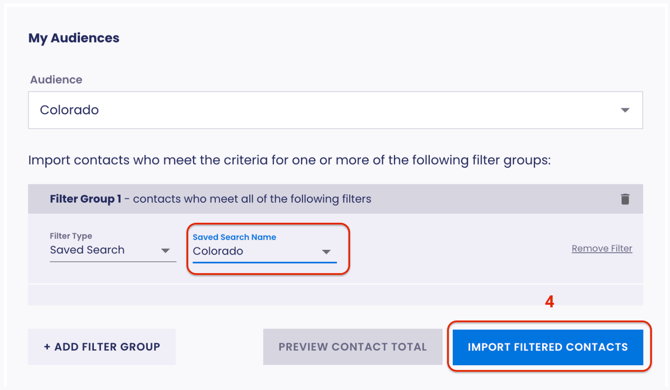
- Select the name of your Saved Search, then click Import Filtered Contacts.
Note: If you want to message your Subscribers (opt-in Audience) you must choose an opt-in number in the previous Sending Numbers step.