---
title: Sending Preview Texts
description: Learn how to use the Preview Texts feature in Scale to Win Text to send test messages before launching a campaign. Preview message variants, check delivery status, and save phone numbers for future previews.
---
[Skip to content](https://support.scaletowin.com/sending-preview-texts#main-content)
English
Show submenu for translations
[](https://www.scaletowin.com/)
Open main navigation
Close main navigation
- English
Show submenu for translations
- [Contact us](https://support.scaletowin.com/contact)
[Contact us](https://support.scaletowin.com/contact?hsLang=en)
Hi! How can we help?
- There are no suggestions because the search field is empty.
1. [Scale to Win](https://support.scaletowin.com/?hsLang=en)
2. [Scale to Win Text](https://support.scaletowin.com/scale-to-win-text?hsLang=en)
3. [Creating Text Campaigns](https://support.scaletowin.com/scale-to-win-text?hsLang=en#creating-text-campaigns)
# Sending Preview Texts
| **TABLE OF CONTENTS** |
| --- |
| - [Adding Preview Text Numbers](https://support.scaletowin.com/sending-preview-texts#preview-text) - [Sending Preview Texts Before Starting a Campaign](https://support.scaletowin.com/sending-preview-texts#preview-text-before-campaign) - [Sending Preview Texts After Starting a Campaign](https://support.scaletowin.com/sending-preview-texts#sending-preview-after) |
The Preview Texts feature lets you send previews of your initials message(s) directly to your phone, so you can see exactly what your texts will look like! You can send preview texts both before and after starting your campaign. You can also save phone numbers you want to send your preview texts to in each of your subaccounts.
#### **Adding Preview Text Numbers**
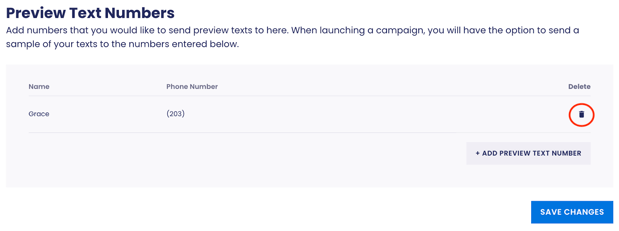
You can send preview texts to any number, either by typing it in each time you send a preview, or by saving it to your subaccount. To save a phone number to a subaccount, open up its **Settings** page and scroll to the section labeled **Preview Text Numbers.** Click the **+ ADD PREVIEW TEXT NUMBERS** button.

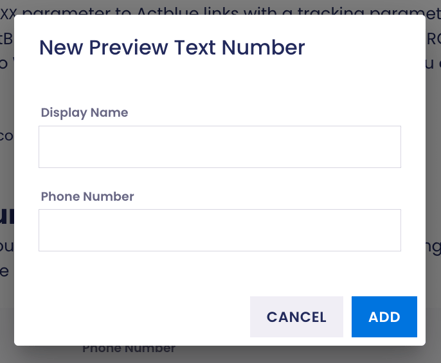
In the pop up window, type in the phone number you want to save and a display name for it. Read over the number carefully to make sure you’ve entered it correctly! Click **Add**.
The phone number will be displayed under the **Preview Text Numbers** heading. Repeat these steps to add as many preview text numbers as you’d like. Clicking **Add** saves the phone number, and you do not have to click **Save Changes** before leaving the **Settings** page.
#### **Sending Preview Texts Before Starting a Campaign**
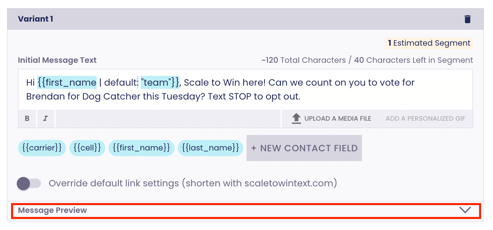
To send a preview text before you’ve started your campaign, navigate to the **Initial Message** step. Click the **Message Preview** button below any variant.
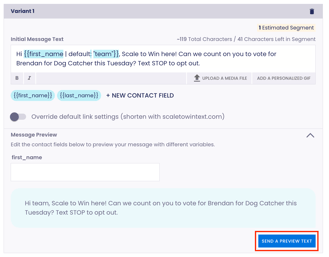
In the dropdown that opens, you’ll see a preview of that variant. If you’ve used any contact fields, you can edit them to preview how different variables will appear in your text. Click the blue **Send a Preview Text** button.
In the popup window, check the box next to any **Preview Text Numbers** saved to the subaccount, and/or type any new numbers in the **New Preview Text Numbers** field.
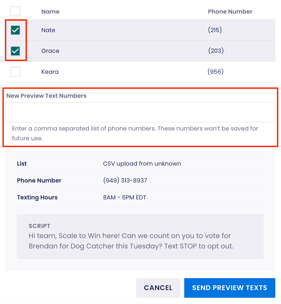
Click **Send Preview Texts**. A popup will confirm that your preview texts were sent. To check the delivery status of your preview text(s), click **View Delivery Status**.

A popup labeled **Preview Text Send History** will appear. Check the **Status** column to see the status of each of your preview messages. Click the circular arrow in the top right corner to refresh. [Click here](https://scaletowin.freshdesk.com/support/solutions/articles/66000529481-error-codes-shaft-violations-and-filtering-in-text-campaigns) to read more about different delivery statuses and error codes.
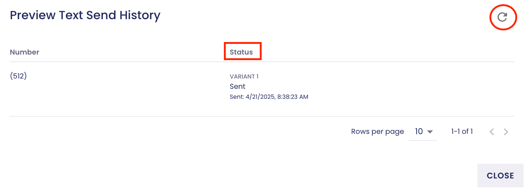
Once you’ve sent out preview texts, you can access the **Preview Text Send History** popup from the **Initial Message** step of your campaign any time. Just scroll to the bottom of your initial message variant(s) and click **View Preview History**.

To send preview texts of any other variants in your campaign, repeat these steps for those variants. You can send preview texts within the campaign builder both before and after starting your campaign. You can also do this without uploading a contact list to your campaign, or if you’ve already texted all of the contacts in your campaign.
#### **Sending Preview Texts After Starting a Campaign**
Once your campaign is started, you can also send preview texts from the campaign home page. Click the **Preview Text** button below your campaign details. Please note that you can only send previews using this method if you still have unmessaged contacts in the campaign; if you’ve texted your full list, this button will not be available.
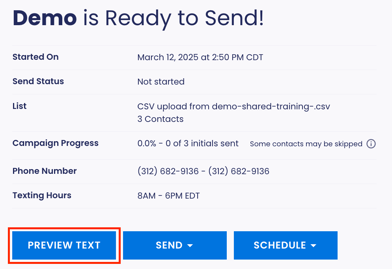
Select or type in the phone number(s) that you want to receive preview text(s). If your campaign has multiple script variants, each number will receive a preview of all variants. If your scripts include any contact fields, the variables used in your preview texts will come from the sample contact for the campaign. You can select a sample contact from the campaign’s **Contact Mapping** page. For example, in the screenshot below, both scripts include the first\_name contact field, and the sample contact’s first name is Grace.

Click **Send Preview Texts**. A popup will appear, confirming that your preview texts were sent. To check the delivery status of your preview text(s), click **View Delivery Status**.

You’ll be taken to a dropdown menu on the campaign home page labeled **Sending Status**. The right half of this dropdown will show you the delivery status of your preview texts, including any that you sent from the **Initial Message** step. Click the circular arrow in the top right corner of this section to refresh. You can also access this menu any time by scrolling down to it on the campaign home page.

- [Scale to Win Text](https://support.scaletowin.com/scale-to-win-text?hsLang=en#main-content)
- [Getting Started](https://support.scaletowin.com/scale-to-win-text?hsLang=en#getting-started)
- [Creating Text Campaigns](https://support.scaletowin.com/scale-to-win-text?hsLang=en#creating-text-campaigns)
- [Navigating Your Menu & Features](https://support.scaletowin.com/scale-to-win-text?hsLang=en#navigating-your-menu-features)
- [Integrations & Data Management](https://support.scaletowin.com/scale-to-win-text?hsLang=en#integrations-data-management)
- [Best Practices, Troubleshooting & FAQs](https://support.scaletowin.com/scale-to-win-text?hsLang=en#best-practices-troubleshooting-faqs)
- [Glossary](https://support.scaletowin.com/scale-to-win-text?hsLang=en#glossary)
- [Scale To Win Text | Phone Number Registration](https://support.scaletowin.com/scale-to-win-text-phone-number-registration?hsLang=en#main-content)
- [10DLC](https://support.scaletowin.com/scale-to-win-text-phone-number-registration?hsLang=en#10dlc)
- [Short Code](https://support.scaletowin.com/scale-to-win-text-phone-number-registration?hsLang=en#short-code)
- [Compliance Guidelines](https://support.scaletowin.com/scale-to-win-text-phone-number-registration?hsLang=en#compliance-guidelines)
- [Scale To Win Text | Phone Number Types](https://support.scaletowin.com/scale-to-win-text-phone-number-types?hsLang=en#main-content)
- [10DLC](https://support.scaletowin.com/scale-to-win-text-phone-number-types?hsLang=en#10dlc)
- [Short Code](https://support.scaletowin.com/scale-to-win-text-phone-number-types?hsLang=en#short-code)
- [Scale To Win Text | Guides for Texters](https://support.scaletowin.com/scale-to-win-text-guides-for-texters?hsLang=en#main-content)
- [Getting Started](https://support.scaletowin.com/scale-to-win-text-guides-for-texters?hsLang=en#getting-started)
- [Texter View](https://support.scaletowin.com/scale-to-win-text-guides-for-texters?hsLang=en#texter-view)
- [Scale to Win Dialer](https://support.scaletowin.com/scale-to-win-dialer?hsLang=en#main-content)
- [Getting Started](https://support.scaletowin.com/scale-to-win-dialer?hsLang=en#getting-started)
- [Creating Call Campaigns](https://support.scaletowin.com/scale-to-win-dialer?hsLang=en#creating-call-campaigns)
- [Features](https://support.scaletowin.com/scale-to-win-dialer?hsLang=en#features)
- [Navigating Your Menu](https://support.scaletowin.com/scale-to-win-dialer?hsLang=en#navigating-your-menu)
- [Managing Call Campaigns](https://support.scaletowin.com/scale-to-win-dialer?hsLang=en#managing-call-campaigns)
- [Integrations & Data Management](https://support.scaletowin.com/scale-to-win-dialer?hsLang=en#integrations-data-management)
- [Caller Academy | Guides for Callers](https://support.scaletowin.com/caller-academy-guides-for-callers?hsLang=en#main-content)
- [Getting Started](https://support.scaletowin.com/caller-academy-guides-for-callers?hsLang=en#getting-started)
- [Making Calls & Clicking](https://support.scaletowin.com/caller-academy-guides-for-callers?hsLang=en#making-calls-clicking)
- [Billing](https://support.scaletowin.com/billing?hsLang=en#main-content)
- [Setting up your billing portal](https://support.scaletowin.com/billing?hsLang=en#setting-up-your-billing-portal)
- [Payment Methods](https://support.scaletowin.com/billing?hsLang=en#payment-methods)
- [Understanding Charges](https://support.scaletowin.com/billing?hsLang=en#understanding-charges)
[](http://scaletowin.com)
Copyright © 2025, Scale to Win