
Spoke can be accessed as a texter and as an admin. Every user in your organization who is assigned texts can access the texter features to send and respond to their texts. Admins - users with Supervolunteer, Admin, or Owner permissions - also have access to administrative settings to manage and monitor text campaigns. By default, you'll see the texter side of Spoke.
To access the admin side, click the gray circle with your first initial in the upper right corner of your Spoke. This will reveal a menu. Click the name of your organization, which is located under "Teams", to be taken to the admin side.
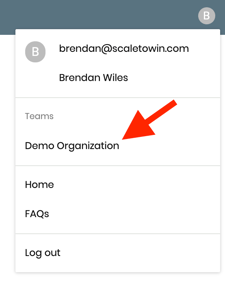
Screenshot of the menu accessed by clicking on your first initial in the upper right corner. Click on the name of your team to be taken to the admin pages.
There are two ways to switch back to the texter side:
Option 1: Click "Switch to texter" in the navigation bar on the left.
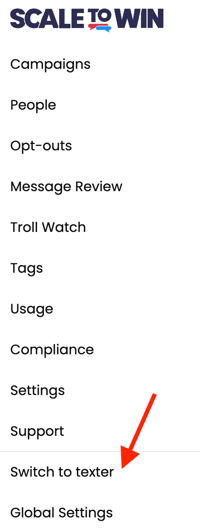 Image displaying where to find “Switch to texter” on the admin side of Spoke.
Option 2: In the upper right corner, you can click the gray circle with your initial to reveal a menu. By clicking “Home” you can switch back to the texter side.
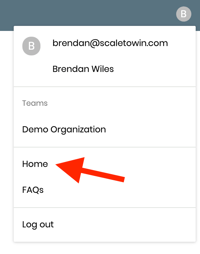 Image displaying how to find “Home” in the menu at the top right corner.