
| TABLE OF CONTENTS |
Tags are customizable labels you can apply to contacts based on conversations. Tags help capture granular insights about your audience and are the only way to sync Survey Responses, Activist Codes, and Canvass Results from your text conversations back to NGP VAN.
Note: Your NGP VAN integration must be set up before syncing tags. You can find instructions on how to set up your NGP VAN integration in this article.
Flat vs. Single Select Tags:
Scale to Win Text offers the ability to create two kinds of tags: first, a Flat Tag that enables you to track conversation data and send data back to your NGP VAN / EveryAction account.
Second are Single Select Tags, which allow you to create tag groups with multiple values within each group. Additionally, you can add VAN integrations per tag within the group, and tag values sort alphabetically.
Creating and Using Tags
Once created, you can add any or all Tags to your text campaigns.
To add a new Tag to your account:
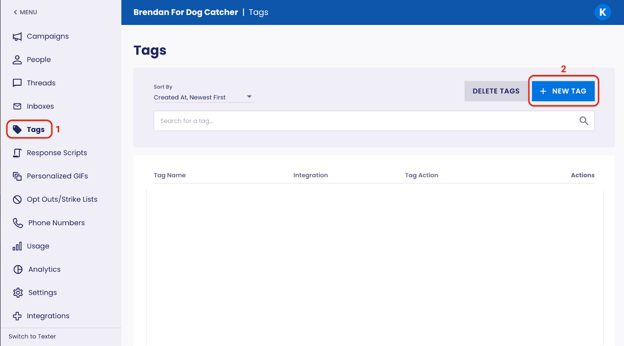
- Navigate to your Tags page in your subaccount menu.
- Click + New Tag.
- Enter desired Tag name
- Choose a Tag Type (Flat or Single Select)
- Click Save
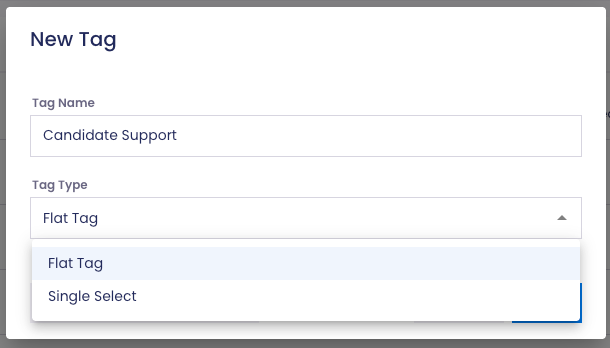
Single Select Tags are ideal for grouping tags based on type. For example, if you’re advocating for multiple candidates, issues, or collecting responses about a specific topic, you can use Single Select Tags to keep your Tags page organized or delete your group after you’ve used it in a text campaign(s). Here are the properties of Single Select Tags:
- Create multiple tag values per group, by clicking the + Add a Single Select Tag button.
- Add one or more VAN Integrations per value
- Select VAN Integration
- Select Action Type (Canvass Result, Activist Code, Survey Response)
- Select the associated Canvass Result, Activist Code, or Survey Question → Survey Response
Flat Tags allow for VAN Integrations at the tag level.
Editing and Deleting Tags from the Tags Page:
You can edit or delete tags from the Tags page using the pencil or trash icons.
You can edit a Tag name or delete it. You can add, edit, or remove Single Select Tag values and associated VAN integrations.
You can’t edit a Tag type (Flat vs Single Select).
Note: When a tag within a single-select group is deleted:
- It persists in historical campaign data but is not visible in the Texter and Threads View
- It is no longer available for future campaigns
- If a tag or tag value was added to a campaign via a Response Script, that value will not continue to appear on the Response Script
Map NGP VAN Statuses to Tags
When you map an NGP VAN status to a Tag, the data automatically syncs with NGP VAN whenever the Tag is applied.
To map an NGP VAN status to a Tag:
- Navigate to your Tags page in your subaccount menu.
- Click the pencil icon next to the Tag you want to map.
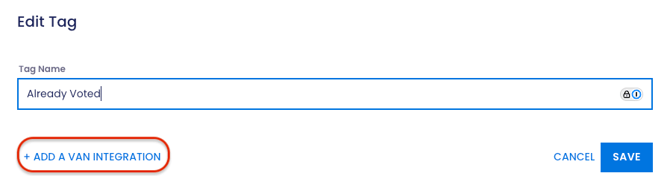
- Click + Add a VAN Integration.
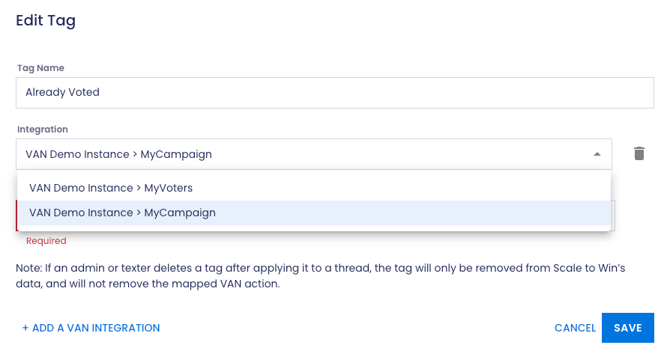
- Map Tags to either (or both) MyVoters or MyCampaigns by selecting from the drop-down menu.
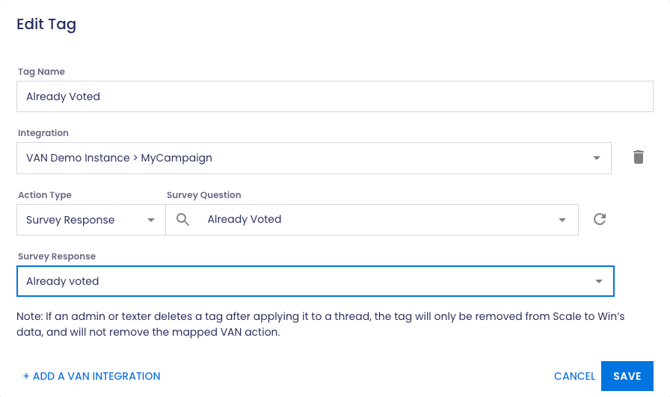
- In the Action Type dropdown menu, select whether you want to sync the data as a Canvass Result, Activist Code, or Survey Response.
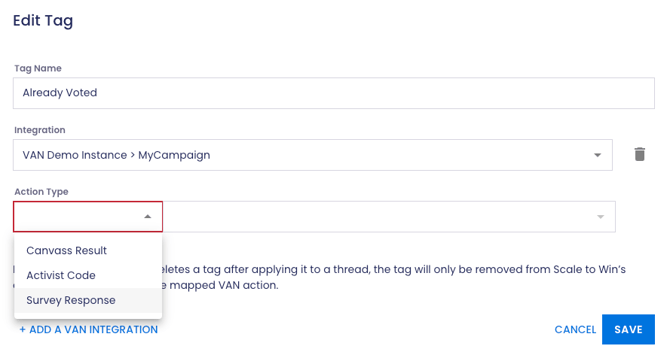
- Note: Selecting Survey Response prompts selection of your survey question and its corresponding response.
- Click Save.
Adding Tags to Text Campaigns and Conversations
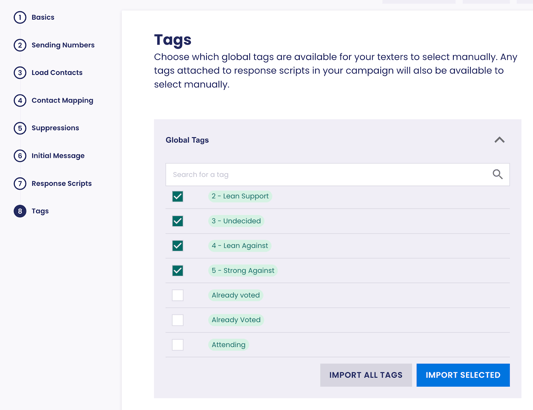
Before you can use Tags in a text campaign, you must first import them.
- Navigate to the Campaigns page and click New Campaign.
- Navigate to Tags (Step 8).
- To import all available Tags, click Import All Tags .
- To import specific tags, check the box next to the Tags you wish to use and click Import Selected.
Applying Tags
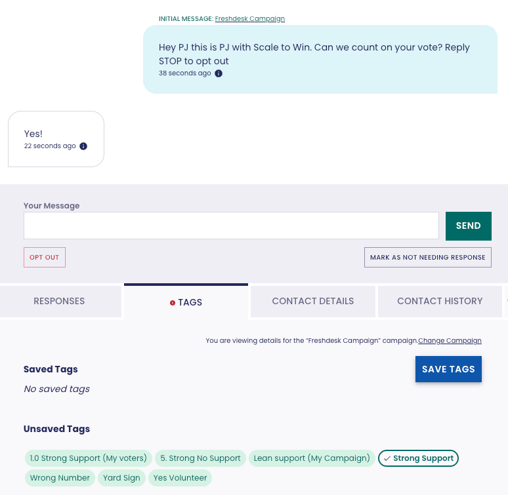
When managing replies from a contact, there are two ways to apply Tags:
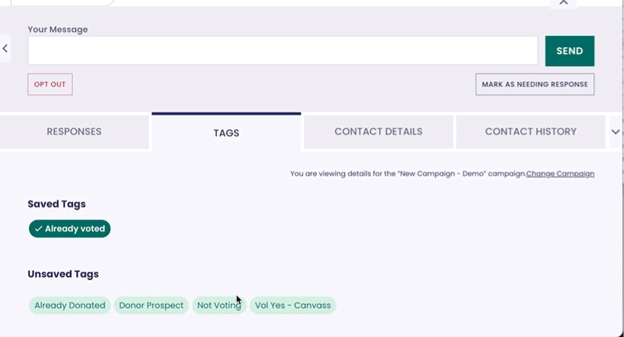
- Manual Tags: Navigate to the Tags tab below the message box. Manually select the Tag(s) you want to apply, then click Save Tags.
- Tagged Scripts: If a Response Script has a Tag attached, that Tag will be automatically applied when the Response Script is sent.
Removing Tags From Conversations
- Hover your pointer over the tag - you should see an x appear.
- Click on the tag.
- Click Save.
Note: Removing a tag from Scale to Win Text does not remove the data applied to a VAN record, owing to limitations of the VAN integration.
How Can Tags Help Your Organization?
Data Tracking & Insights:
Tags categorize and track conversation data, aiding audience segmentation and interaction understanding. Mapping Tags to NGP VAN statuses (e.g., canvass results, survey responses) automatically syncs valuable data, helping analyze campaign performance and adjust strategy based on real-time insights.
Note: Searching for a single-select value on the Global Tags page will surface the associated full tag group. (Example: Searching “Strong Support” surfaces the Candidate Support tag group.)