
| TABLE OF CONTENTS |
The autosend feature enables you to save time, manage spend, and drive ROI by automatically evaluating and expanding your partial sends. You can test one or more script versions to a segment of your list, set the specific criteria you want to use to evaluate performance, and choose whether the variant that meets your criteria will be sent to all or a portion of your remaining list.
Note: This feature requires an ActBlue integration to track ROI statistics.
Starting a Partial Send with Autosend
Complete building your campaign and click Start Campaign.
Note: Remember to include a link to your ActBlue donation page in each initial message variant. A Scale to Win shortlink can be used to shorten this link.
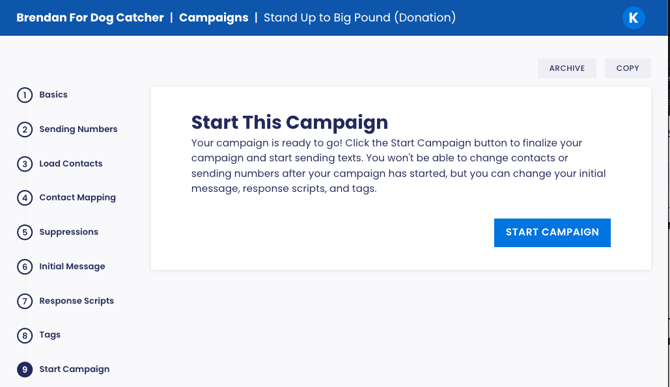
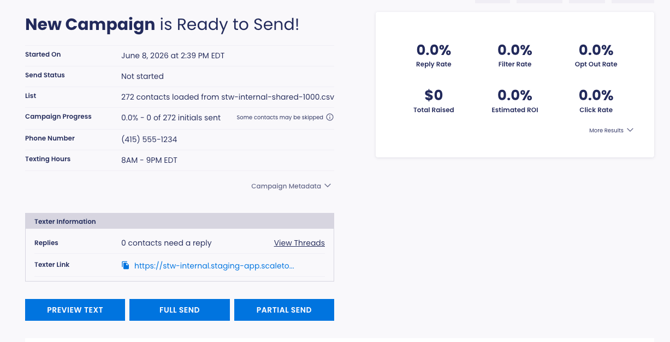
Once your campaign is ready to send, select Partial Send. When the window opens, fill in the number of contacts you’d like to message in your test. If you’d like to schedule your test (rather than sending it immediately), fill in the optional Initial Send Date and Initial Send Time fields.
Click the ADD AUTOSEND button in the lower left corner of the Partial Send window. Now, under Autosend Settings, select the criteria you’d like to use to evalue the results of your partial send.
Autosend Criteria - Multiple Variants
If you’re testing multiple variants, you can choose to pick a winning variant based on:
- Which variant reaches a minimum ROI first
- Which variant has the highest ROI at a set time
You’ll have slightly different criteria to select based on which of these options you choose.
Which variant reaches a minimum ROI first
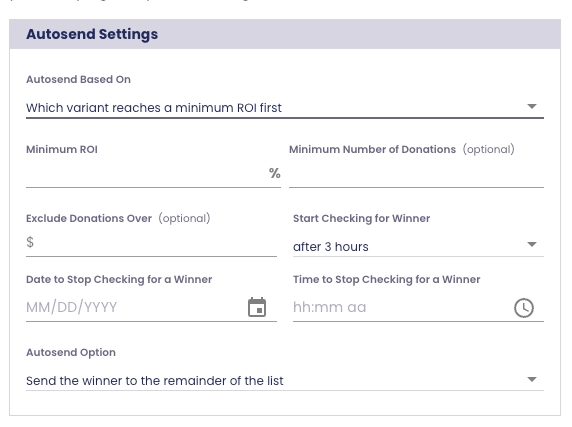
Minimum Number of Donations: (optional) Set the number of donations required for a variant to qualify as a winner. If you complete this field, a variant must meet both the minimum ROI and the minimum number of donations to qualify.
Exclude Donations Over: (optional) Choose to exclude donations over X amount from ROI and number of donations calculations to avoid throwing these calculations off with unusually large donations.
Start Checking for Winner: (required) Choose the amount of time you’d like the system to wait after your partial send finishes before checking for a winner. This option can help you avoid expanding with a variant that performs well early on, but is overtaken by another variant later. The default setting here is 3 hours, as we’ve seen that this wait time results in the true winning variant being selected over 80% of the time.
Date to Stop Checking for a Winner and Time to Stop Checking for a Winner: (required) The day and time that the system will stop checking for a winning variant. Use this field to ensure texts aren’t sent outside of the relevant timeframe. For example, if your copy is only relevant on the day you send the test, use these fields to ensure the system stops checking for a winner at the end of the day and won’t start sending the copy later. If this cutoff time passes without a winner being selected, you’ll still have the option to continue sending manually.
Which variant has a higher ROI at a set time
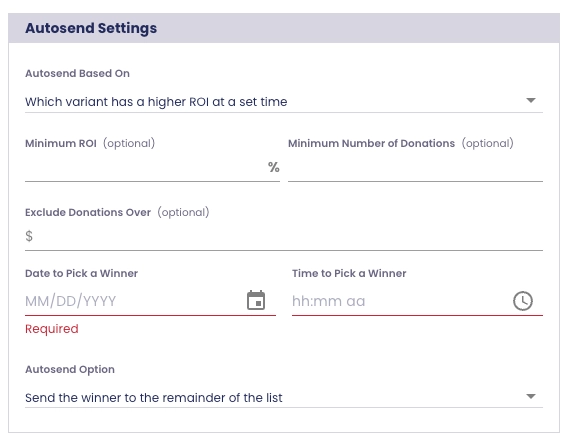
Minimum ROI: (optional) Set a minimum ROI that needs to be reached by at least one variant in order for a winner to be selected. If you don’t fill in this field, the system will choose whichever variant has the highest ROI at the time you select, regardless of whether that ROI is above or below 100%.
Minimum Number of Donations: (optional) Set the number of donations required for a variant to qualify as a winner.
Exclude Donations Over: (optional) Choose to exclude donations over X amount from ROI and number of donations calculations to avoid throwing these calculations off with unusually large donations.
Date to Pick a Winner and Time to Pick a Winner: (required) The day and time that the system will pick the winning variant.
Autosend Criteria - Single Variant
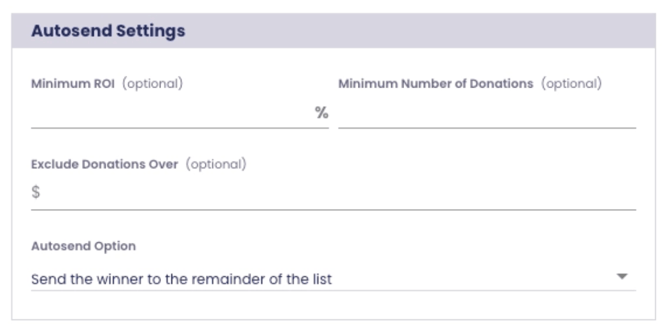
Autosends with a single variant work similarly to those with multiple variants, but you’ll have fewer criteria to select from in your autosend settings. Note that while both minimum ROI and minimum number of donations are optional, at least one must be set.
Minimum ROI: (optional) Set a minimum ROI that needs to be reached by your variant to trigger the autosend.
Minimum Number of Donations: (optional) Set the number of donations your variant must receive to trigger autosend.
Exclude Donations Over: (optional) Choose to exclude donations over X amount from ROI and number of donations calculations to avoid throwing these off with unusually large donations.
Autosend Options (Multiple Variants and Single Variant)
Autosend Option: (required) Select whether you would like the autosend to go to the remainder of your list, or to just a portion of the list. If you choose to send to another portion, that batch will go out, and then the autosend will complete. At this point, you’ll be able to edit, add, or remove variants, manually initiate another partial send (with or without an autosend), initiate a full send, or simply stop sending.
Don’t Send After Date and Don’t Send After Time: (required) Use this field to set the date and time at which autosending should stop completely in this campaign. If an autosend is triggered and your variant is still sending to the remainder of your list when this time passes, sending will stop. If this happens, you will still have the option to continue sending manually!
Partial Send Results (Multiple Variants and Single Variant)
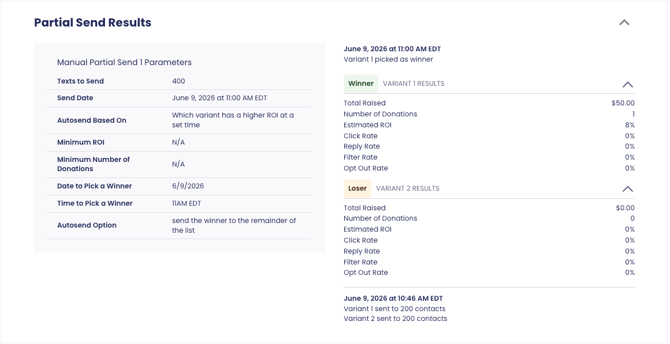
Once you’ve started a partial send, you’ll see a section called Partial Send Results on your campaign’s home page. Click on this section to open the dropdown.
Here, you’ll be able to see the individual results for each of your partial sends. On the left side of the section, you’ll see the criteria you selected for each of your partial sends. If you’ve run a partial send with multiple variants, this section will also show what the results were at the time a winner was picked. For single-variant sends, it will display the results at the time the autosend was triggered.
Manually Picking a Winner (Multi-Variant Test)
If you run an autosend with multiple variants and no winner is able to be determined, your Campaign Results page will show you a prompt to manually choose your next step. From here, you can either choose a variant to send to all or some of your remaining contacts, or you can choose to stop sending entirely by clicking Close.